Setup guide
Connect Vitati360 to your AI assistant
Add the Vitati360 connector once, sign in with your Vitati360 account, and ask questions in plain English. It takes about two minutes. Included in Premium and Enterprise plans.
Server address
https://mcp.vitati360.com/mcpPaste this exactly when your assistant asks for a URL.
Claude
Connect Claude
Works on claude.ai in the browser and in the Claude desktop app. Adding a custom connector needs a paid Claude plan (such as Pro or Max).
Open Customize → Connectors, then choose Add
In Claude, click Customize in the left sidebar and open the Connectors tab. Click Add, then Add custom connector.
Or open claude.ai/customize/connectors directly
Name it and paste the server address
Type a name such as Vitati360, paste the server address below into the MCP server URL field, and click Continue.
https://mcp.vitati360.com/mcp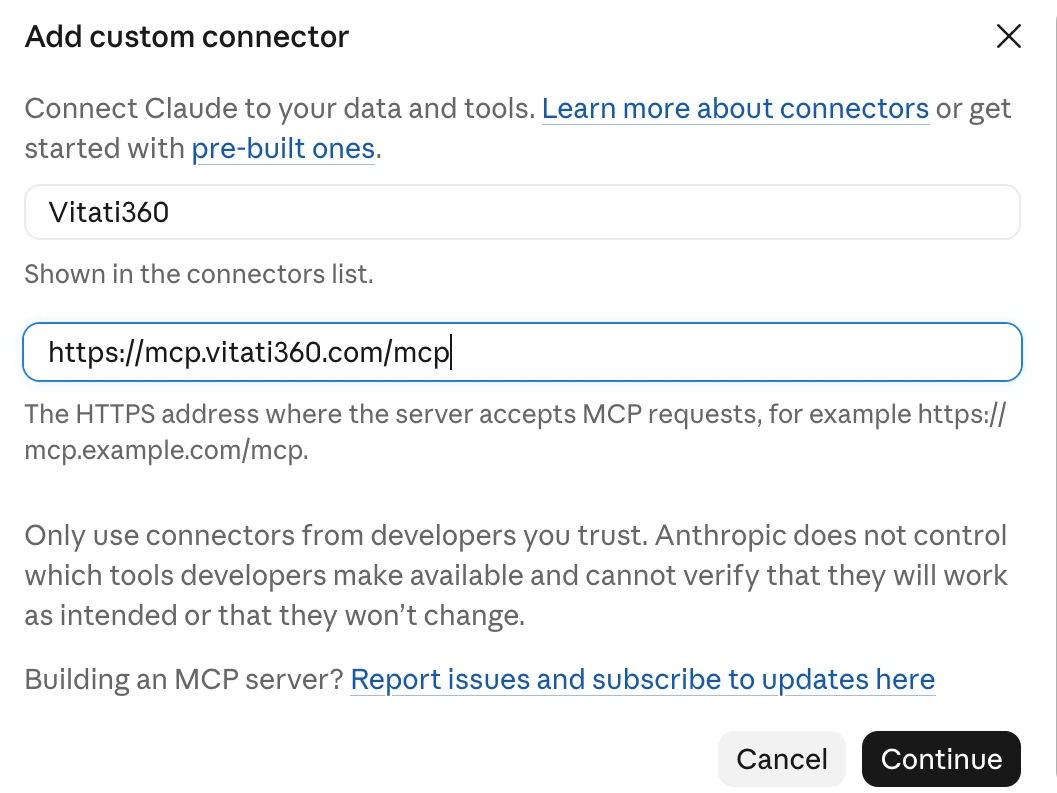
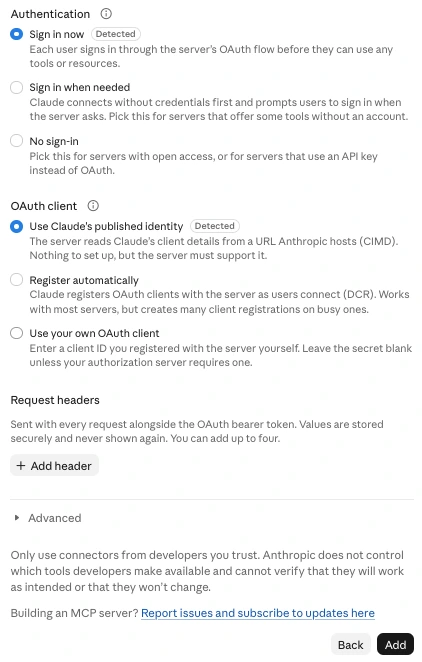
Keep the default sign-in options
Claude detects that the server uses sign-in. Leave “Sign in now” and “Use Claude’s published identity” selected, and click Add at the bottom.
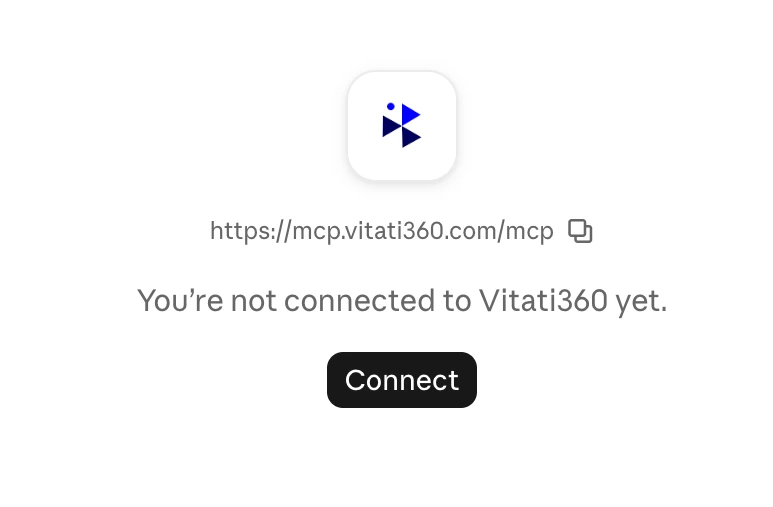
Click Connect
The connector now appears in your list. Click Connect to sign in to Vitati360.
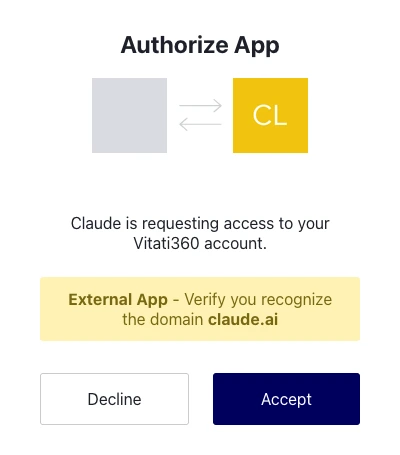
Sign in and accept
Log in with your Vitati360 email and password if asked. A page then shows that Claude is requesting access to your Vitati360 account. Check that the domain is claude.ai and click Accept.
Let Claude use the tools without asking each time
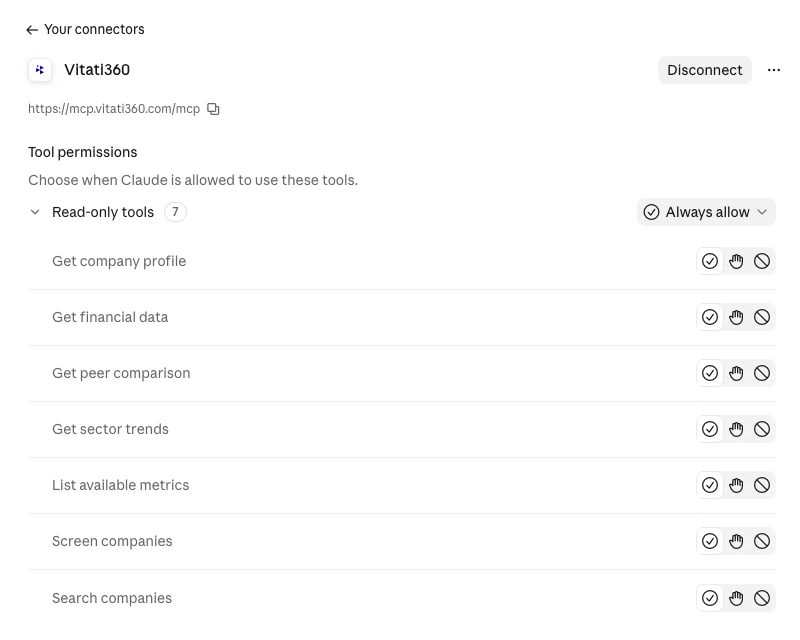
You land on the connector’s page. The seven tools are read-only. Change “Needs approval” to “Always allow” so Claude doesn’t stop to ask before every lookup.
Ask your first question
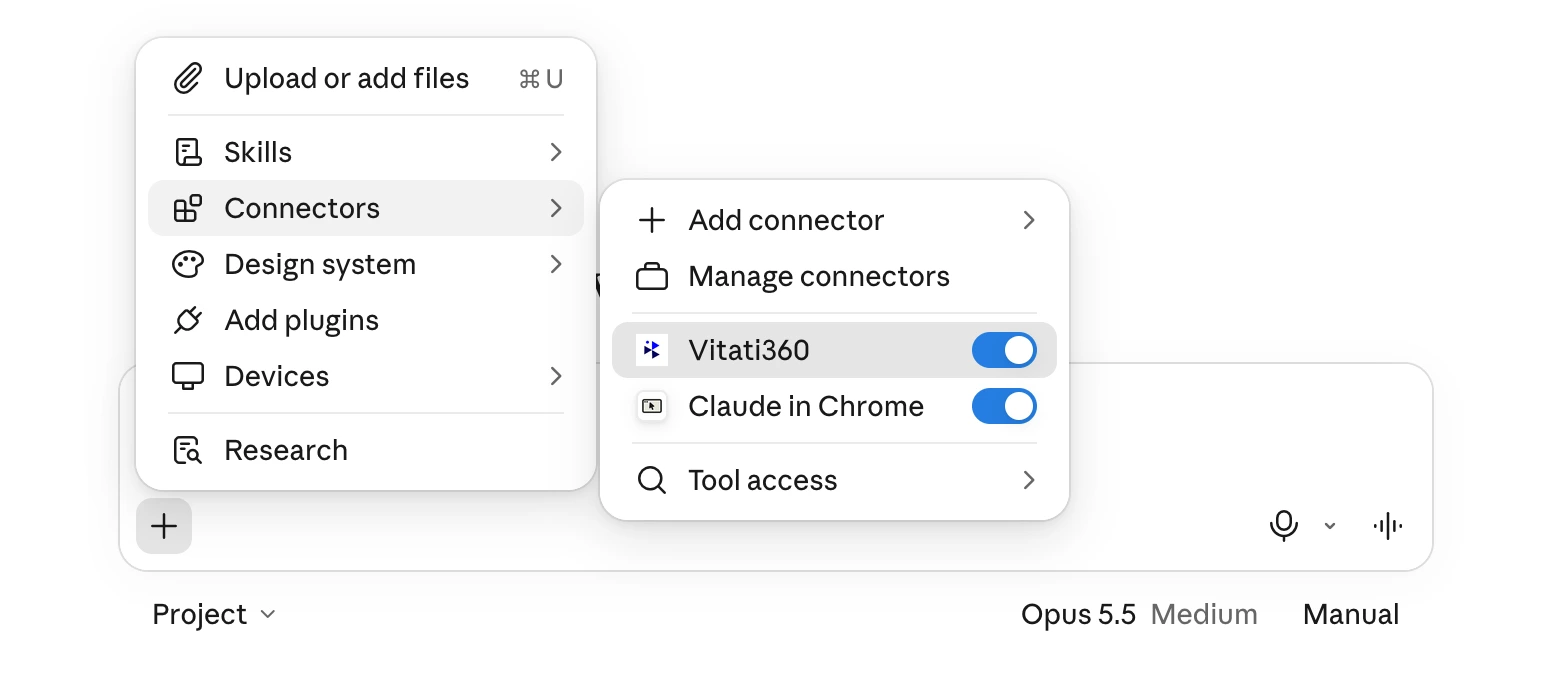
Start a new chat. Click +, then Connectors, and check that Vitati is switched on; it is on by default. Then ask, for example: “Using Vitati360, what was Apple’s revenue and net income for the last 3 years?”
ChatGPT
Connect ChatGPT
Works on chatgpt.com in the browser. Adding a custom MCP server needs a ChatGPT plan that allows custom plugins; if you do not see the option, check your plan or ask your workspace admin.
Click Add, then Add custom MCP server
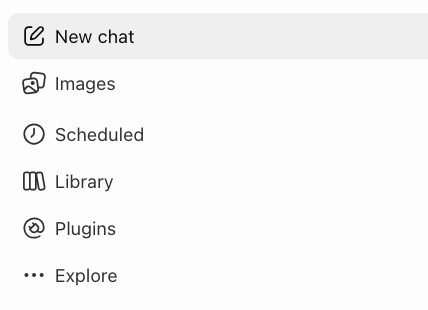
At the top right of the Plugins page, click Add and choose “Add custom MCP server”.

Enter the details
Name it Vitati360. Under Connection, choose Server URL and paste the server address below. Set Authentication to OAuth. The description is optional.
https://mcp.vitati360.com/mcp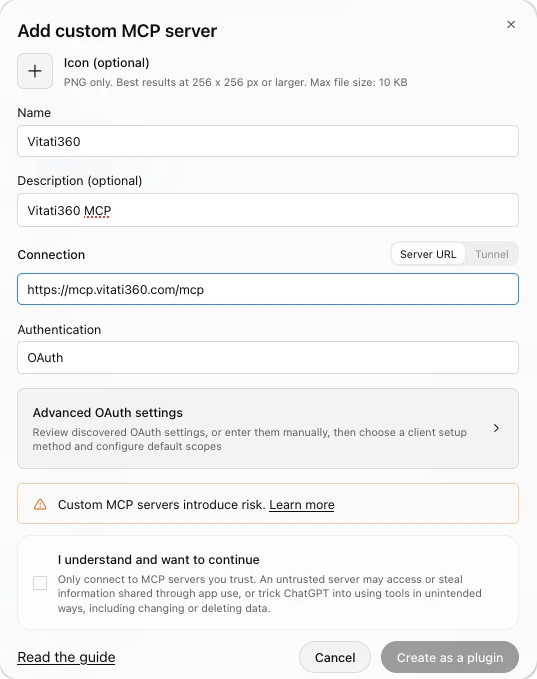
Confirm and create
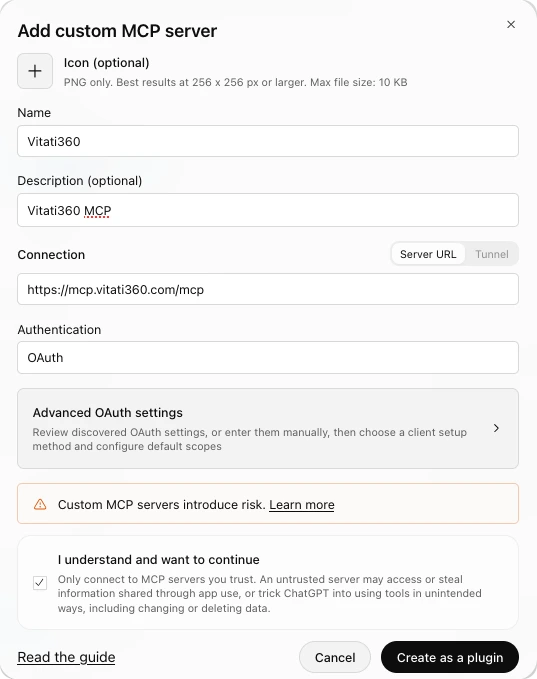
Tick “I understand and want to continue”, then click “Create as a plugin”. Only connect to servers you trust; Vitati360 is read-only and cannot change anything in your account.
Connect
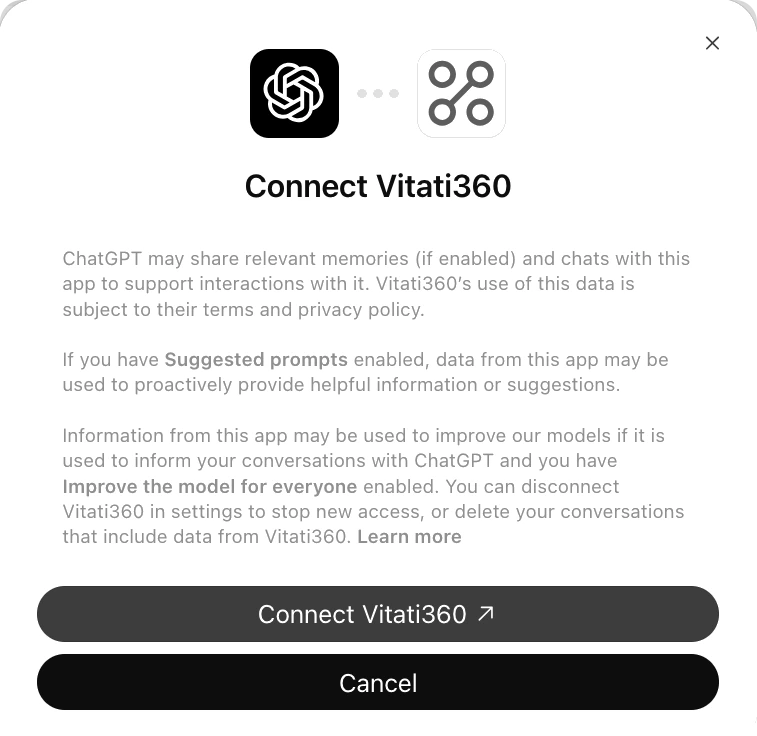
ChatGPT shows a Connect Vitati360 screen. Click Connect Vitati360. A Vitati360 sign-in window opens.
Sign in and allow access
Log in with your Vitati360 email and password if asked, then check that the request is from ChatGPT and click Accept. Let the window close on its own.
Ask your first question
Start a new chat, make sure the Vitati360 plugin is switched on, and ask: “Using Vitati360, what was Apple’s revenue and net income for the last 3 years?”
Good to know
- One account connects to one AI app at a time. Connecting somewhere new disconnects the previous one.
- If ChatGPT says “try again after some time” when you click Connect, open a private (incognito) window, sign in to ChatGPT there and repeat the steps. Old browser data can block the connection.
- A connection lasts 7 days. After that, click Connect again and sign in.
- If you see “No Vitati360 account is linked to this sign-in”, log in once at app.vitati360.com and connect again.